How to Configure a GPS Tracker with Claude Code and Your AI
Configuring a GPS tracker has always meant working from the manual: find the command, write the rule, test and fix. Now you can ask the AI you already use. We have published the official Rinho skills for Claude Code, Codex, Cursor, Gemini CLI and Claude.ai: you say what you need in your own language and your AI builds the configuration, validates it with the same engine as the web configurator and, if you tell it to, loads it on the device over USB.
🎯 Who this article is for: technicians, installers and integrators who configure Rinho Zero IoT, Spider IoT or Smart IoT devices and already work with an AI assistant.
What a skill is
A skill is a package of instructions and tools that teaches an AI agent one specific task. It uses the open Agent Skills format, so the same package works in Claude Code, Claude.ai, Codex, Cursor, Gemini CLI and any compatible agent.
The Rinho skills give your AI three things it does not have on its own: the public command documentation, a set of tested recipes and the validator of the official configurator. That is why it does not improvise: if a command does not exist or your firmware does not support it, it says so.
The three skills
- rinho-config: Builds rules, alarms, outputs, reports and low-power modes from 31 tested recipes. Validates every line and flags what your firmware does not support.
- rinho-diagnostics: Guides the troubleshooting of a device with read-only queries: why it is not reporting, why it has no position, what is configured and what is missing.
- rinho-zones: Turns a KML, KMZ or CSV into the device's zones file (up to 4096 shapes in 512 zones) and writes the enter and leave rules.
All three are free, open source (Apache-2.0) and available in the GitHub repository.
Installation
You need Node.js 18 or later.
Claude Code, Codex, Cursor and other agents:
npx skills add fernandorvs/rinho-skills
In Claude Code add -a claude-code at the end, or install them as a plugin to receive updates:
/plugin marketplace add fernandorvs/rinho-skills
/plugin install rinho@rinho
Claude.ai and Claude Desktop: download the .zip file of each skill from config.rinho.com.ar/skills and add it under Settings → Capabilities → Skills.
An example: overspeed with buzzer
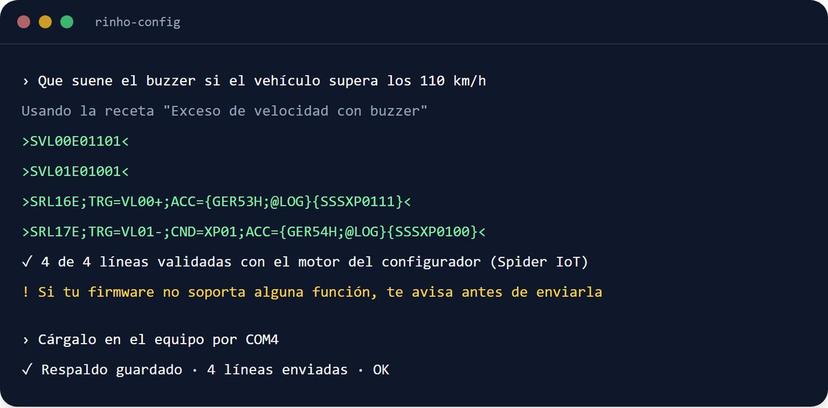
With the skills installed, you write the request the way you would say it to a technician:
Sound the buzzer if the vehicle goes over 110 km/h
The AI asks for the model and firmware version, picks the "Overspeed with buzzer" recipe and hands over the lines already validated:
>SVL00E01101<
>SVL01E01001<
>SRL16E;TRG=VL00+;ACC={GER53H;@LOG}{SSSXP0111}<
>SRL17E;TRG=VL01-;CND=XP01;ACC={GER54H;@LOG}{SSSXP0100}<
The buzzer turns on above 110 km/h and turns off when the speed drops below 100 km/h, so it does not chatter around the limit. In both cases the device reports an event to your platform.
From there you have two options:
- Paste the lines into the web configurator, in Code mode, review them and send them from there.
- Ask the AI to load them, with the device connected over USB and naming the port: "Load it on the device on COM4".
More requests to try
- "My device is not reporting to the platform, what should I check?" The diagnostics skill queries the device status (cellular network, GPS, power, configured destination) and narrows down the cause step by step.
- "I want a warning if the door stays open for more than five minutes."
- "Engine cut with a buzzer pre-warning, only at low speed."
- "Turn this KML of depots into zones and have the device report when a truck leaves one."
- "Explain what this configuration does", pasting an existing block.
Built-in safeguards
The safeguards live in the tool's code, not in the AI's instructions:
- It validates every line with the same engine as the configurator before handing it over.
- It writes to the device only when you explicitly ask, and only through the serial port you name.
- It backs up the current configuration before changing it.
- It sends one line at a time and stops at the first error.
- It asks for confirmation before activating outputs or running sensitive commands.
- It masks APN, passwords and credentials in what it shows.
- It does not use security, factory-reset or firmware-update commands.
⚠️ Important: if the configuration drives an output (engine cut, siren, buzzer), test it first with the vehicle stopped.
The web configurator
The skills build on the web configurator, the free tool for configuring Rinho devices from the browser. If you prefer working with forms, or want to review what your AI built before sending it, this is the place.
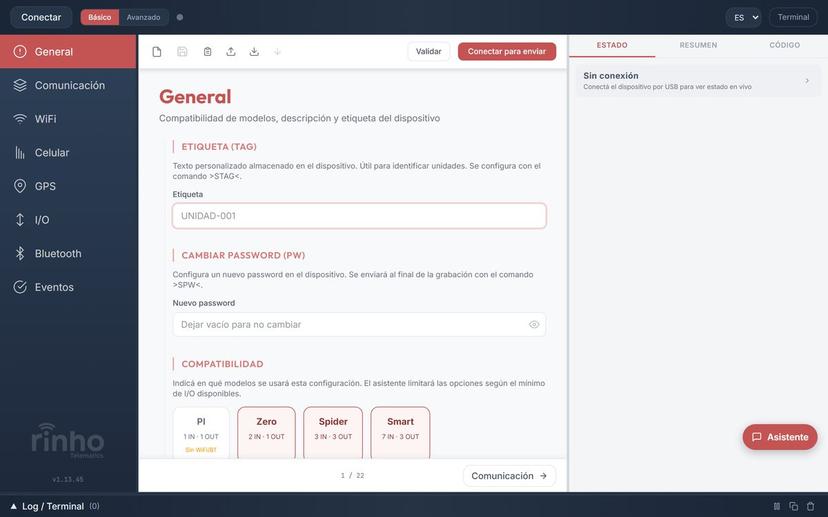
- Nothing to install: connect the device over USB and configure it from Chrome, Edge or Opera.
- Forms by section: communication, WiFi, cellular, GPS, inputs and outputs, Bluetooth and events.
- Three working modes: Basic, with guided modules; Advanced, with every parameter; and Code, to edit the full configuration as text. Code mode is where you paste what the skills hand over.
- Validation before sending: it checks the configuration and flags errors before writing it to the device.
- Live status: with the device connected you see its status and can update the firmware over the cable.
- One configuration for the whole fleet: save it to a file and load it on every device.
- In Spanish, English and Portuguese.
The configurator also includes an assistant you can ask in plain language, available to Rinho customers with access enabled. You can request it through the contact form.
Frequently asked questions
Do I need to know how to code?
No. You ask your AI for what you need in your own language and it builds and validates the configuration. If you prefer not to use AI, the web configurator works with forms from the browser.
Does it cost anything?
The skills and the web configurator are free for Rinho devices. You only need the AI you already use.
Does it work with older firmware?
Yes. Each feature states which firmware version it requires, and the validation warns you if your device needs an update before using it.
Are alerts generated by the device or by the platform?
Rules run on the device: it turns on the buzzer, cuts an output or reports an event. Notifications, reports and dashboards are set up in your tracking platform (Wialon, Traccar or the one you use) from those events.
Resources
- Configurator and AI: three ways to configure a Rinho device
- Skills repository on GitHub
- Web configurator
- Technical documentation
Did you try the skills? Tell us how it went: your feedback helps us add new recipes. And if you find them useful, a star on GitHub helps more people find them.
Related articles
Related articles

Send GPS Data to Your Own Server: TAIP & Wialon IPS Guide
Make your GPS tracker report to your own server: TAIP vs Wialon IPS, device setup, a sample UDP receiver and real frame parsing. Read the complete guide.
J1939 GPS Tracking: What Engine Data You Can Read
Which engine parameters a GPS tracker can read over J1939 on heavy trucks —RPM, fuel, hours, odometer— and how to capture custom signals with CXECU.
Trailer Temperature Monitoring with Swappable Reefers
How to monitor temperature in reefer trailers that rotate between tractors: numbered 1-Wire sensors that the GPS tracker recognizes on its own at hitch-up.